Add approved products straight to an invoice, plus updates to Meeting Notes ͏ ͏ ͏ ͏ ͏ ͏ ͏ ͏ ͏ ͏ ͏ ͏ ͏ ͏ ͏ ͏ ͏ ͏ ͏ ͏ ͏ ͏ ͏ ͏ ͏ ͏ ͏ ͏ ͏ ͏ ͏ ͏ ͏ ͏ ͏ ͏ ͏ ͏ ͏ ͏ ͏ ͏ ͏ ͏ ͏ ͏ ͏ ͏ ͏ ͏ ͏ ͏ ͏ ͏ ͏ ͏ ͏ ͏ ͏ ͏ ͏ ͏ ͏ ͏ ͏ ͏ ͏ ͏ ͏ ͏ ͏ ͏ ͏ ͏ ͏ ͏ ͏ ͏ ͏ ͏ ͏ ͏ ͏ ͏ ͏ ͏ ͏ ͏ ͏ ͏ ͏ ͏ ͏ ͏ ͏ ͏ ͏ ͏ ͏ ͏ ͏ ͏ ͏ ͏ ͏ ͏ ͏ ͏ ͏ ͏ ͏ ͏ ͏ ͏ ͏ ͏ ͏ ͏ ͏ ͏ ͏ ͏ ͏ ͏ ͏
|
Preview text
|
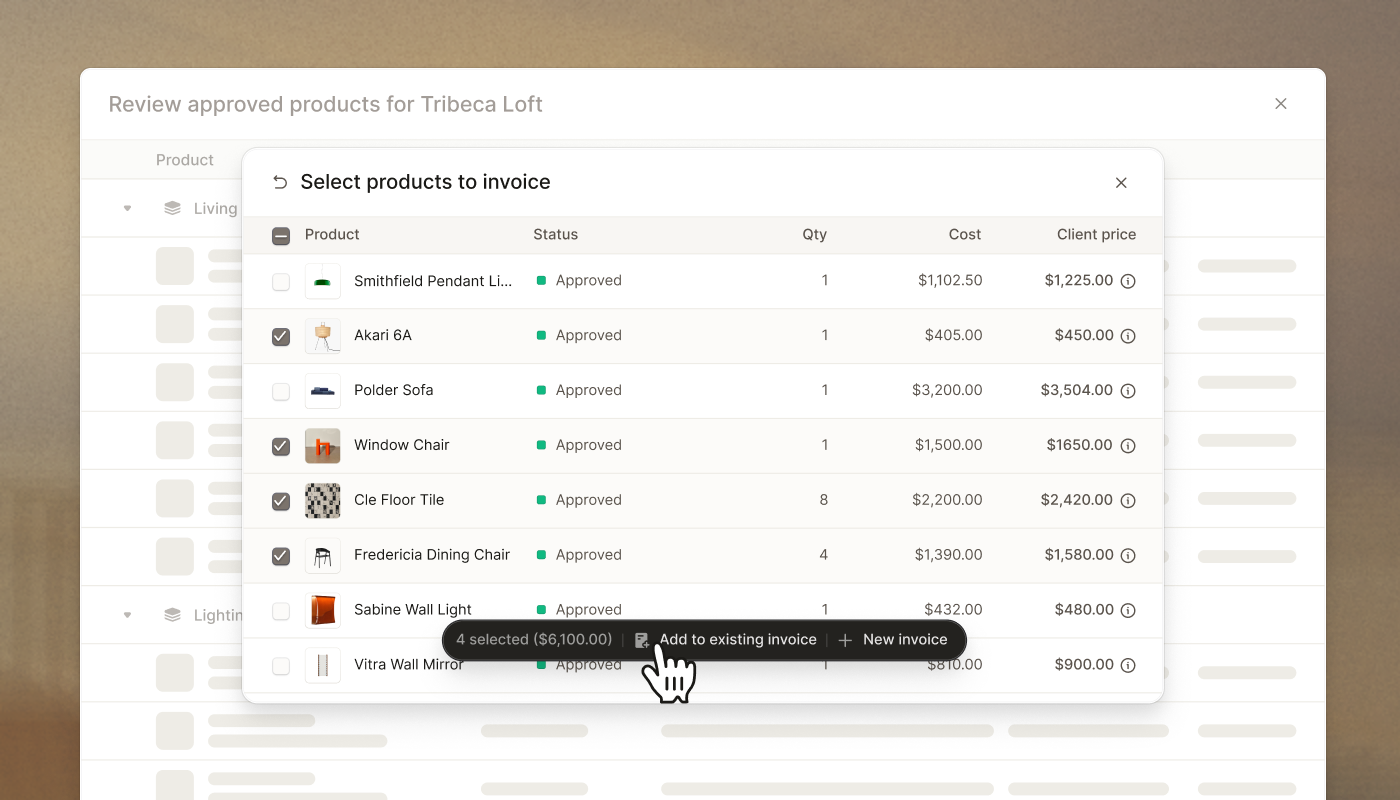
| Add approved products to a new or existing invoice, directly from Pulse | Client approves a product? Add it straight to an invoice.
In Pulse, select a review approved products action, then click the create invoice button on the approved products page. From there, select products and add them to a new or existing invoice.
It's the fastest path from client sign off to getting paid, built on data already in your project. Invoices come out well designed and on brand, with custom instalments and automatic QuickBooks and Xero sync built in. |
| Get started | |
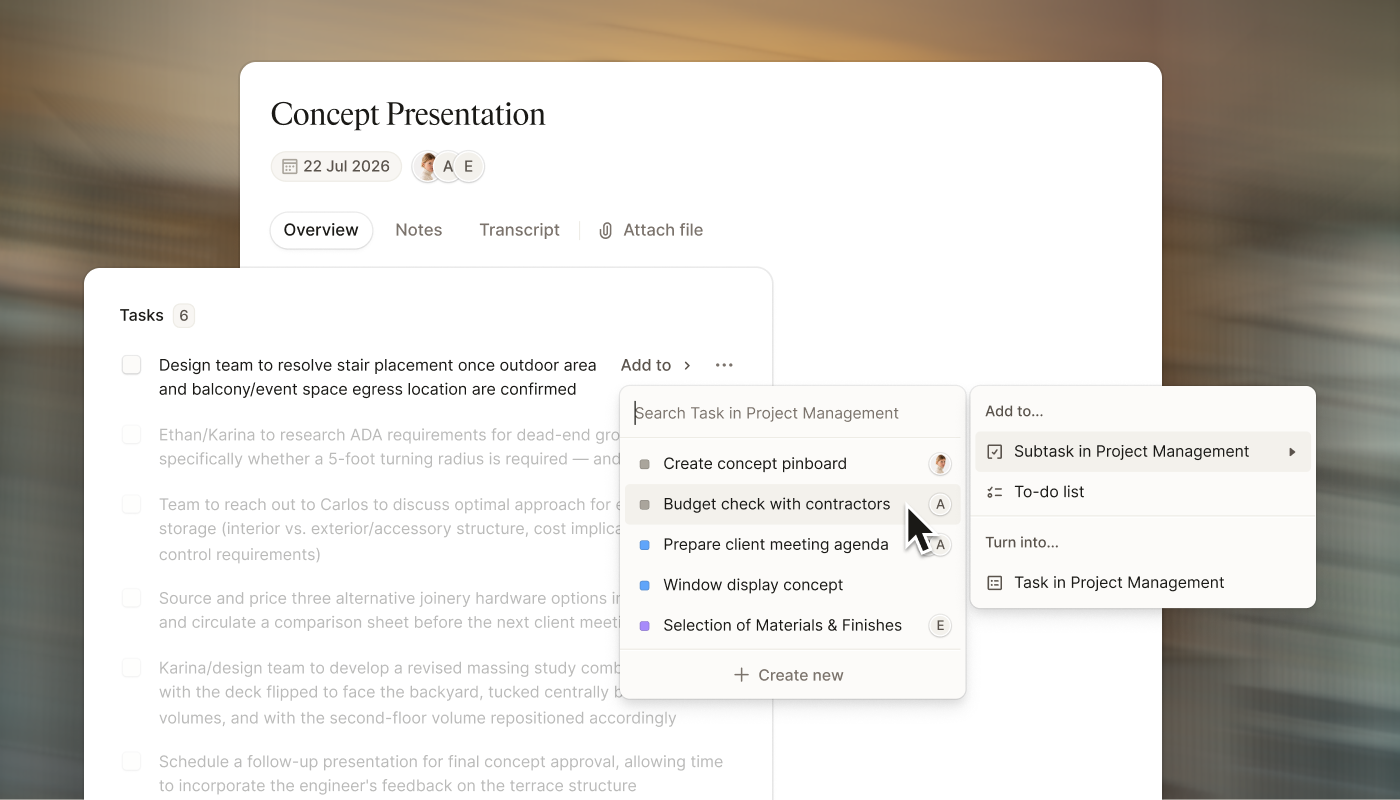
| Keep action items and follow-ups from getting buried in your notes | Now you can turn any action item in your meeting's Tasks section into a subtask, a new Project Management task, or a To-do List entry, without leaving Meeting Notes. Once linked, tick items off from the meeting view, or open the full task in Project Management to update status, team members, target date, and phase.
Create a meeting to get started or visit the help centre to learn more. |
| Open Meeting Notes | |
|